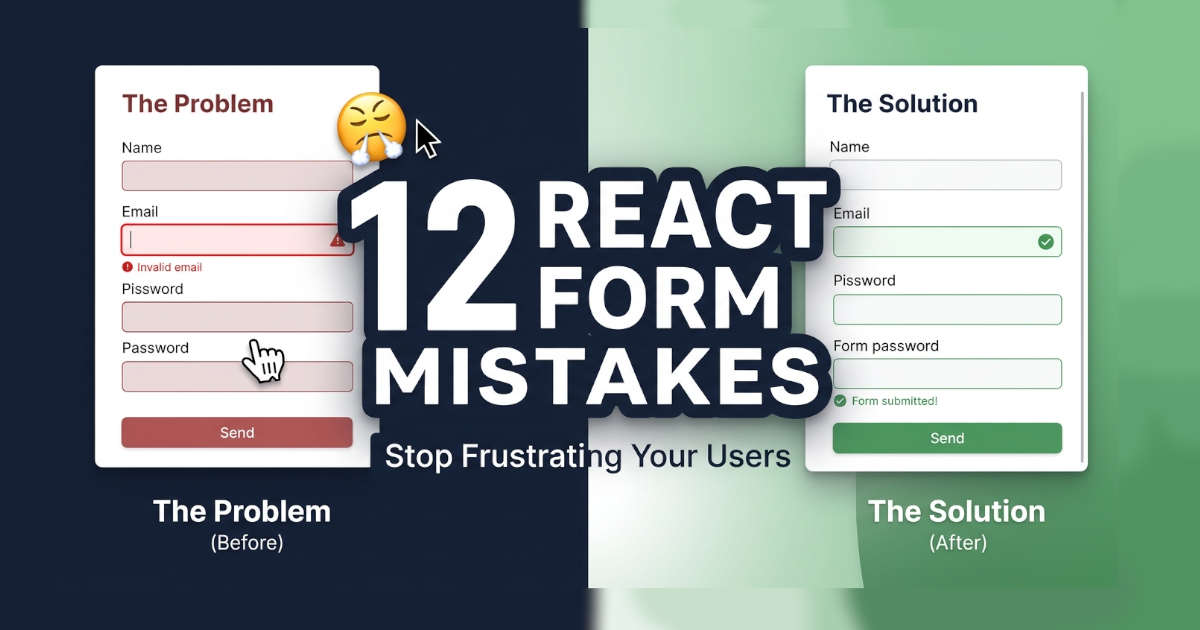
Forms are weirdly hard to get right. You'd think typing in a box and hitting submit would be simple. But somehow, small stuff keeps breaking, and users get annoyed fast.
I've built a lot of forms in React. And I've watched people use them. Here are the mistakes I see over and over again, the ones that make users sigh, retype stuff, or just leave.
Let's go through them.
1. The Input That Won't Let You Type
You start typing. Nothing shows up. Or the console yells: "changing an uncontrolled input to be controlled."
This one's a classic. It happens when you set value={email} but email starts as undefined. First render, React thinks it's an uncontrolled input. Second render, it's controlled. React gets confused and the input stops working.
The fix: start with an empty string, not nothing.
jsx
const [email, setEmail] = React.useState('');If the value comes from an API, guard it:
jsx
value={user?.name ?? ''}Never let undefined touch a controlled input. Simple as that.
Read article on "What to Know Before Learning Next.js in 2026"
2. The Form That Deletes Everything When You Mess Up
You fill out eight fields. You hit submit. One field is wrong. And boom, every field goes blank.
This one hurts. People retype everything. Some just give up.
The fix: don't reset the form when validation fails. That's it. Keep the user's input.
If you're using React 19's useActionState, send the fields back and use defaultValue:
jsx
<input name="email" defaultValue={state.fields?.email ?? ''} />The user's work should survive a failed submit. Always.
Read article on "10 High-Impact Projects"
3. Forgetting e.preventDefault()
You hit submit. The whole page reloads. State gone. Screen white.
Every React dev has done this at least once. HTML forms reload the page by default. If you don't stop it, your handler runs and then the browser takes over.
The fix: one line at the top of your handler.
jsx
function handleSubmit(e) {
  e.preventDefault();
  // now do your thing
}
That's it. One line. Saves you a whole category of bugs.
Read article on "Gates Calls for Global AI Rules & Human J"
4. Yelling at Users While They're Still Typing
You type the letter "j" into the email field. Instantly: "Invalid email address."
Dude. I'm not done yet.
Validating on every keystroke feels helpful. It's not. It's annoying. Errors should show up after the user has had a chance to finish.
The fix: validate on blur, or wait until the field has been touched.
jsx
const [touched, setTouched] = React.useState({});

<input
  onBlur={() => setTouched(prev => ({ ...prev, email: true }))}
/>
{touched.email && errors.email && <span>{errors.email}</span>}
Give people some breathing room. Show errors when it makes sense.
Read article on "How to Build a TDD Workflow"
5. The Button That Does Nothing
You click Submit. Nothing happens. No spinner. No message. Nothing.
So you click again. And again. Now you've got three orders.
If the user clicks and nothing tells them it worked, they'll assume it didn't. That's on you.
The fix: disable the button and show a loading state.
jsx
<button type="submit" disabled={isSubmitting}>
  {isSubmitting ? 'Saving…' : 'Save'}
</button>
Now the user knows something is happening. And you don't get double submissions.
Read article on "Choose Between FastAPI and Express.js"
6. Using the Array Index as a Key
You've got a form where people can add multiple emails. They add three. Then they delete the second one. Suddenly every field below shows the wrong value.
This is what happens when you use key={index} in a dynamic list. React reuses the wrong DOM elements. Values jump around. It's a mess.
The fix: give each row a real ID when you create it.
jsx
const nextRow = { id: crypto.randomUUID(), value: '' };Then use key={row.id}. The key should be tied to the data, not its position.
Read article on "10 Next.js Security Mistakes"
7. Clicking the Label Does Nothing
You click "Email address" and nothing happens. The cursor doesn't jump to the input. Screen reader users don't even know what the input is for.
Small thing, big impact.
The fix: connect the label to the input with htmlFor and id.
jsx
<label htmlFor="email">Email address</label>
<input id="email" type="email" />
In React it's htmlFor, not for. Yeah, it's weird. But that's how JSX works.
8. One Big State Object for Everything
Your form has twelve fields. Every time you type one character, the whole form re-renders. All twelve fields recalculate. On a slow phone, typing feels laggy.
The fix: for big forms, either use React Hook Form (it handles this well) or keep state closer to the input.
jsx
function EmailField() {
  const [value, setValue] = React.useState('');
  return <input value={value} onChange={e => setValue(e.target.value)} />;
}
Now typing in one field only re-renders that field. Not the whole form.
9. Errors That Don't Say Where the Problem Is
The server says "Invalid credentials." You show it at the top of the form in a red box. The user has to scan everything to figure out what's wrong.
That's not helpful.
The fix: put field errors next to their fields. If the email is wrong, show it next to the email input.
React Hook Form makes this easy:
jsx
setError('email', { message: 'This email is already registered' });For errors that really are about the whole form (like a network fail), a top-level message is fine. But field errors belong next to their field. React Hook Form's setError
10. Setting a Value but Forgetting onChange
You set value={email}. You forget the onChange. The user types. Nothing appears. The input looks normal but it's read-only.
React even warns you in the console. But people miss it.
The fix: every controlled input needs both.
jsx
<input
  value={email}
  onChange={e => setEmail(e.target.value)}
/>
If a field really should be read-only, use readOnly or defaultValue. Not value by itself.
11. Making the Form Think It Has Changes When It Doesn't
You're editing a profile. You load the user's data. The Save button lights up immediately, like the user already made changes. But they haven't touched anything.
Now they're confused. Did something change? Should they save?
The fix: use reset() to set the baseline, not setValue.
jsx
React.useEffect(() => {
  if (user) {
    reset({ name: user.name, email: user.email });
  }
}, [user]);
Now the form knows what the original values were. isDirty stays false until the user actually changes something. React Hook Form's reset
12. Never Testing with a Keyboard
Everything works with a mouse. Then you try to tab through, and focus jumps in weird directions, skips fields, or gets stuck.
Keyboard users aren't a small group. Power users, accessibility users, anyone who doesn't want to reach for the mouse, they'll hit this immediately.
The fix: before you ship, tab through the whole form. Every input should get focus in a logical order. Custom stuff like date pickers should respond to keyboard too.
It takes two minutes. It catches real problems.
So What's the Pattern Here?
Every mistake on this list comes from the same place: building for the happy path only.
The form works when the user does everything right. But people make mistakes. Networks fail. Phones are slow. And when things go wrong, the form has to be forgiving.
Don't clear the form when validation fails. Don't yell at people while they type. Show errors next to the field. Let the user keep their work.
As the UK Government Digital Service puts it: "Validate as early as possible, but not before the user has finished." That's the whole game.
Fix the small stuff. Your users won't notice when you get it right. And that's exactly what you want.